WGC Payments SMS Verification Consent
What this page is for
WGC Payments merchant users may voluntarily enable SMS two-factor authentication from their authenticated account under Settings > Security. Providing a business phone number during account registration does not enroll the user in SMS messaging. SMS enrollment occurs only after the user enters a mobile number, affirmatively selects the SMS consent checkbox, and enables SMS two-factor authentication.
SMS is used exclusively for WGC Payments merchant/account authentication and security — one-time verification codes sent when a user enrolls in or logs in with two-factor authentication. These are not marketing, promotional, or donor-facing messages.
Key facts
- SMS two-factor authentication is entirely optional and is never a condition of creating or using a WGC Payments account.
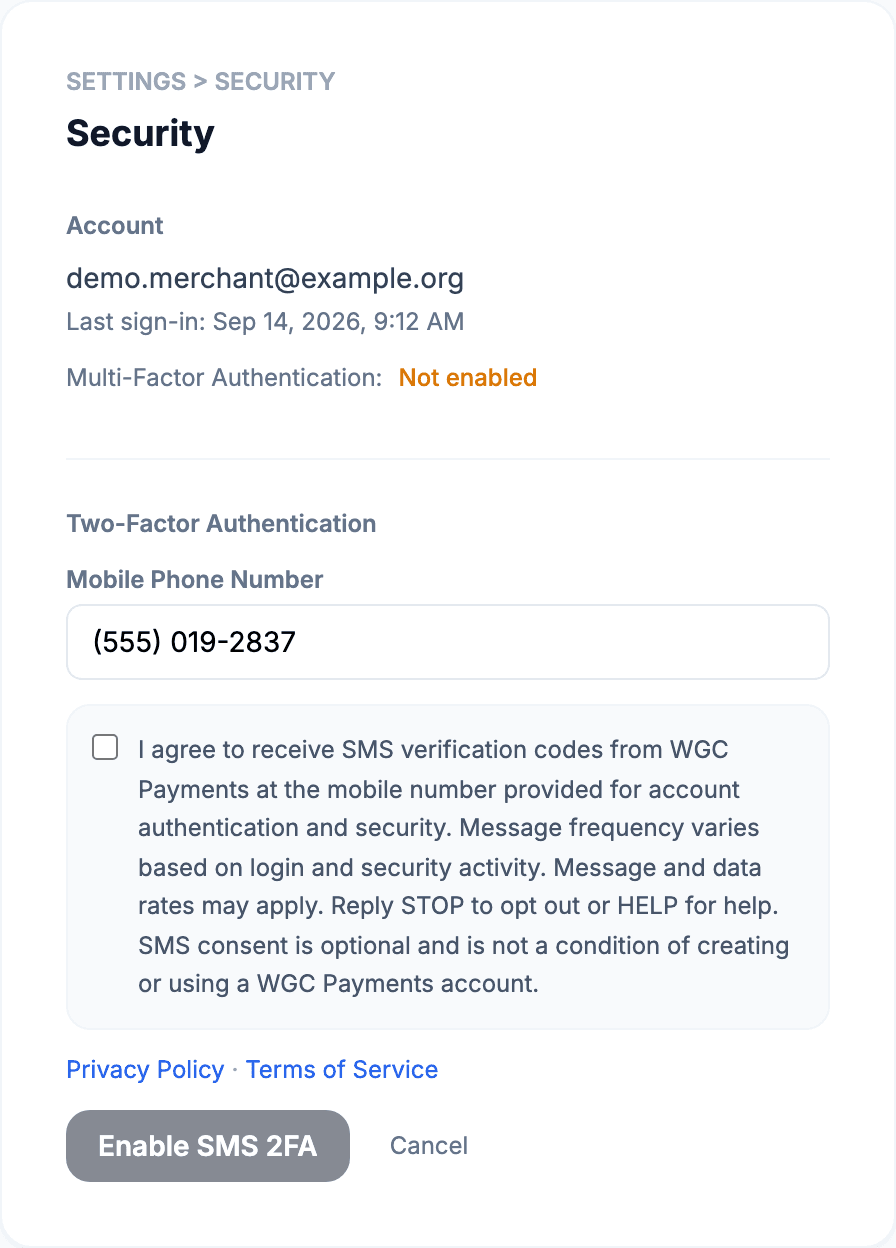
- The consent checkbox is unchecked by default — it is never pre-checked and is never inferred from an existing phone number on file.
- Messages sent are authentication and account-security messages only.
- Message frequency varies based on login and security activity.
- Message and data rates may apply.
- Reply STOP to opt out at any time.
- Reply HELP for help.
- See our Privacy Policy and Terms of Service.
The exact consent language shown to users
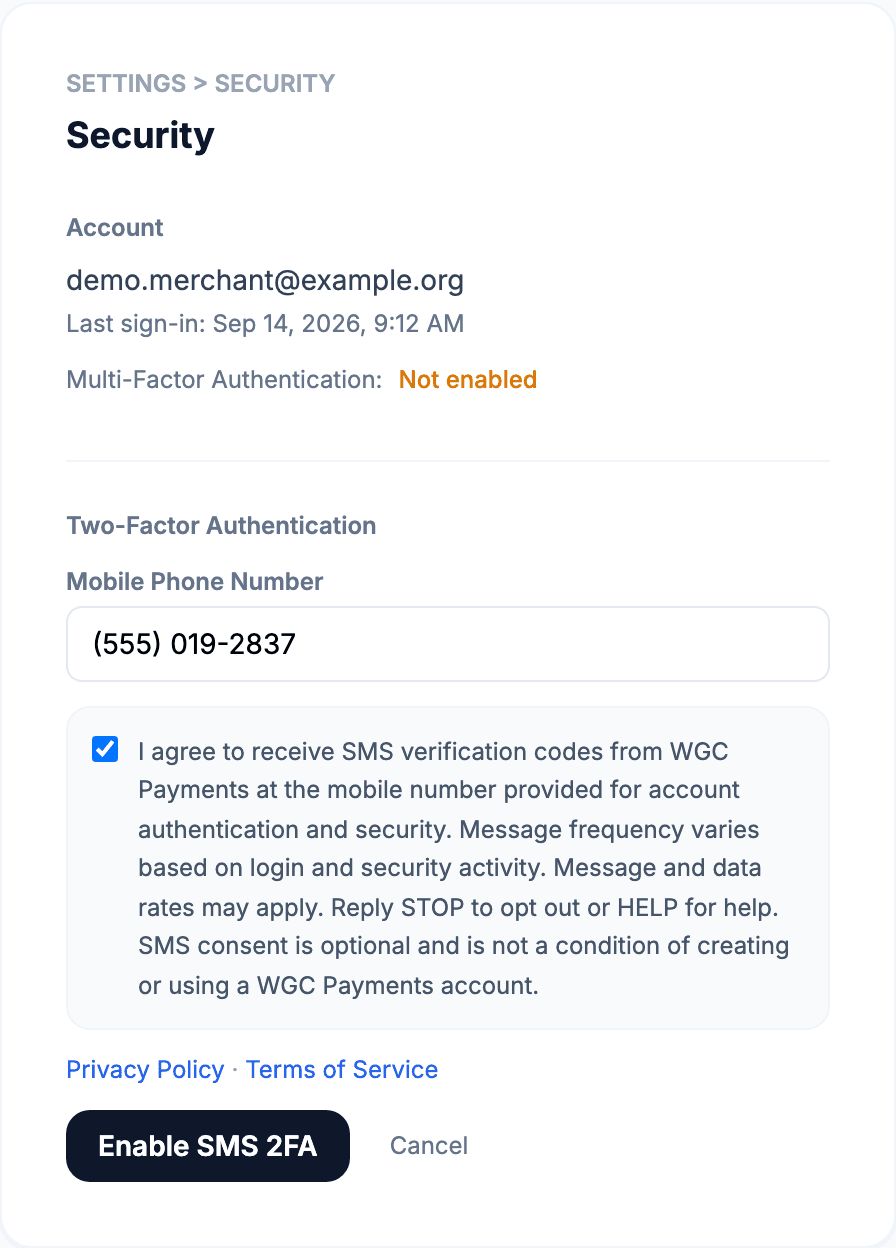
“I agree to receive SMS verification codes from WGC Payments at the mobile number provided for account authentication and security. Message frequency varies based on login and security activity. Message and data rates may apply. Reply STOP to opt out or HELP for help. SMS consent is optional and is not a condition of creating or using a WGC Payments account.”
This exact text is shown next to an unchecked checkbox at the moment of enrollment — see the screenshots below.
The actual enrollment screen
The two screenshots below are captured from the live WGC Payments merchant dashboard’s Settings > Security page (shown with placeholder demo account data, no real customer information). The first shows the SMS 2FA enrollment form as every user first sees it — phone number field, consent checkbox unchecked, and the Enable button disabled until the checkbox is checked. The second shows the same screen immediately after a user affirmatively checks the box, which is what enables the button.
Before consent — checkbox unchecked, button disabled
After consent — checkbox checked, button enabled
Contact
Questions about SMS authentication or this consent process can be sent to support@wgcpayments.com.
Last updated September 2026.